

Time Clock Kiosk App for iPad & Android
Employees clock in with a PIN, track breaks, and add job codes from one shared tablet. Every punch syncs to Teamsly timesheets.
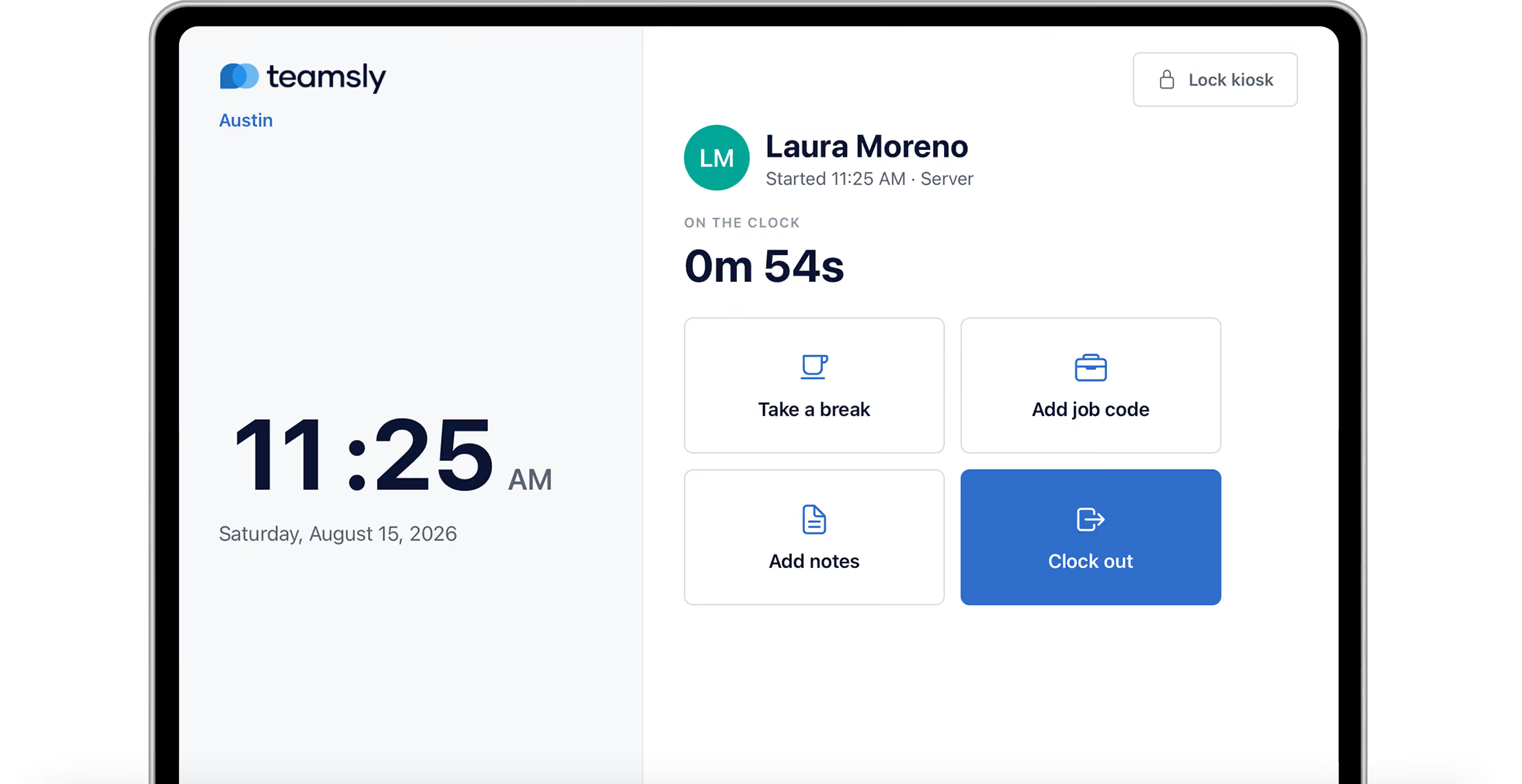
PIN Sign-In
Employees clock in with a 4-digit PIN. No personal phone needed.
Manager Tools
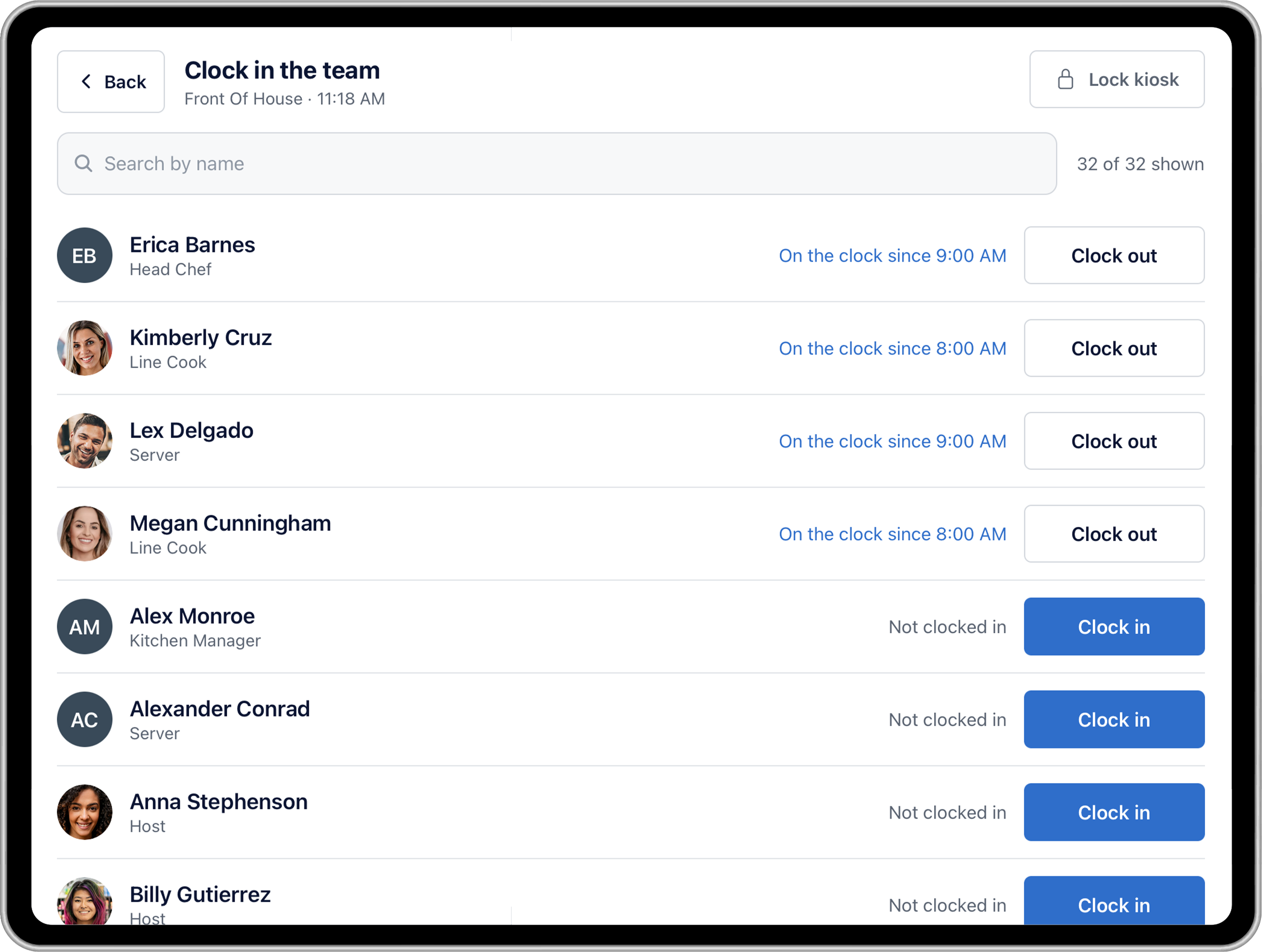
See who's on the clock and clock the team in or out on their behalf.
Automatic Lock
Returns to the PIN screen after 60 seconds without a tap.
Synced Timesheets
Every punch, break, and job code flows straight to timesheets.
A Shared Time Clock Built for Your Location
Turn Your Tablet Into a Time Clock
Download the Teamsly Time Clock app on an iPad or Android tablet, sign in as an admin, pick a location, and name the kiosk. Your team is ready to clock in.
Works on iPad and Android: Use a tablet you already own. Mount it near your entrance and keep it plugged in so it's always ready.
Multiple Kiosks per Location: Set up a kiosk at the front desk and another at the back door, each with its own name.
Location-Based Access: Only employees assigned to the kiosk’s location can sign in.

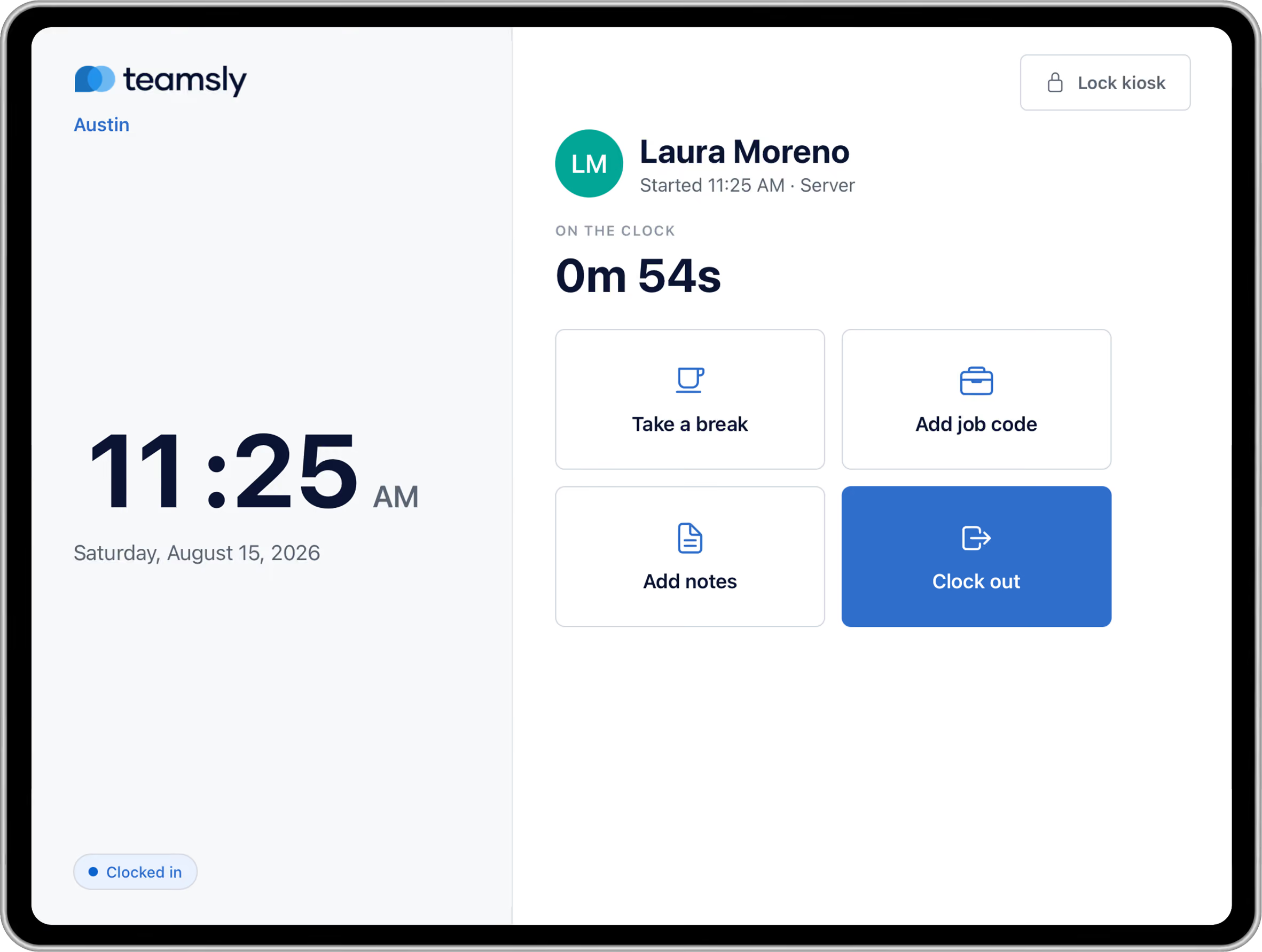
Fast Clock-Ins With a PIN
Employees walk up, enter their PIN, and see their shifts for today. Employees don’t need to install an app on their own phones.
Clock In, Breaks, and Clock Out: Employees pick their shift, start and end breaks, and clock out, all from the same screen.
Job Codes and Notes: Add or switch job codes during a shift and leave a note for a manager right from the kiosk.
Follows Your Time Clock Rules: Early clock-in limits, required breaks, job codes, and tip declaration work just like your other time clocks.
Manage Your Team’s Clock-Ins
When a manager signs in, the kiosk unlocks extra tools to keep the team on track and every timesheet accurate.
Clock In the Team: See who's on the clock and clock employees in or out on their behalf from one list.
Automatic Lock: Returns to the PIN screen after 60 seconds of inactivity, helping protect employee information between uses.
Punches Flow to Timesheets: Every kiosk clock-in, break, job code, and note lands on timecards, ready to review, edit, and export.
Set up your kiosk in three simple steps
No special hardware or IT help required. Grab an iPad or Android tablet, download the app, and your team can start clocking in today.
Get the App
Download the Teamsly Time Clock app on an iPad or Android tablet and sign in with your admin account.
Pick a Location
Name the kiosk and choose its location. Every employee already has a 4-digit PIN ready to go.
Start Clocking In
Your team clocks in and out with their PIN, and every punch shows up on their timecard right away.


The kiosk uses the separate Teamsly Time Clock app. A Teamsly account and internet connection are required.
A kiosk that handles the whole shift
From the first clock-in to the last clock-out, the Teamsly kiosk gives employees a fast way to punch in and gives managers the control they need.
Quick Setup
Connect a tablet to a location and name the kiosk in a few minutes. No extra hardware required.
Personal PINs
Each employee uses a unique 4-digit PIN to access their time clock.
Every Location Covered
Run as many kiosks as you need, each tied to a location so only assigned staff can use it.
Breaks, Job Codes & Notes
Employees take breaks, switch job codes, and leave shift notes without leaving the kiosk.
Built-In Manager Mode
Managers sign in to clock team members in or out on their behalf in just a few taps.
Live On-the-Clock List
See who's clocked in, who's on break, and who hasn't clocked in yet at that location.
Automatic Timesheet Sync
Every kiosk punch lands on timecards, ready to review, edit, and export for payroll.
Your Rules, Enforced
Early clock-in limits, required breaks, and tip declaration follow the settings you already use.
Automatic Lock
Returns to the PIN screen after 60 seconds of inactivity, helping protect employee information between uses.